Enable Meta
Reelist’s tools enable businesses to run advertising under the Reelist advertising account. Those ads can be displayed with your business’s Facebook and Instagram pages, and even be run as promotions of an existing organic social post. To support this, your business will need to provide partner permissions to the Reelist business on Meta’s Business platform.
In this guide we’ll cover:
- Confirming you have adequate access
- Adding Reelist as a business partner
- Reelist enabling the promotion feature
Step 1: Confirm you or a team member’s access level
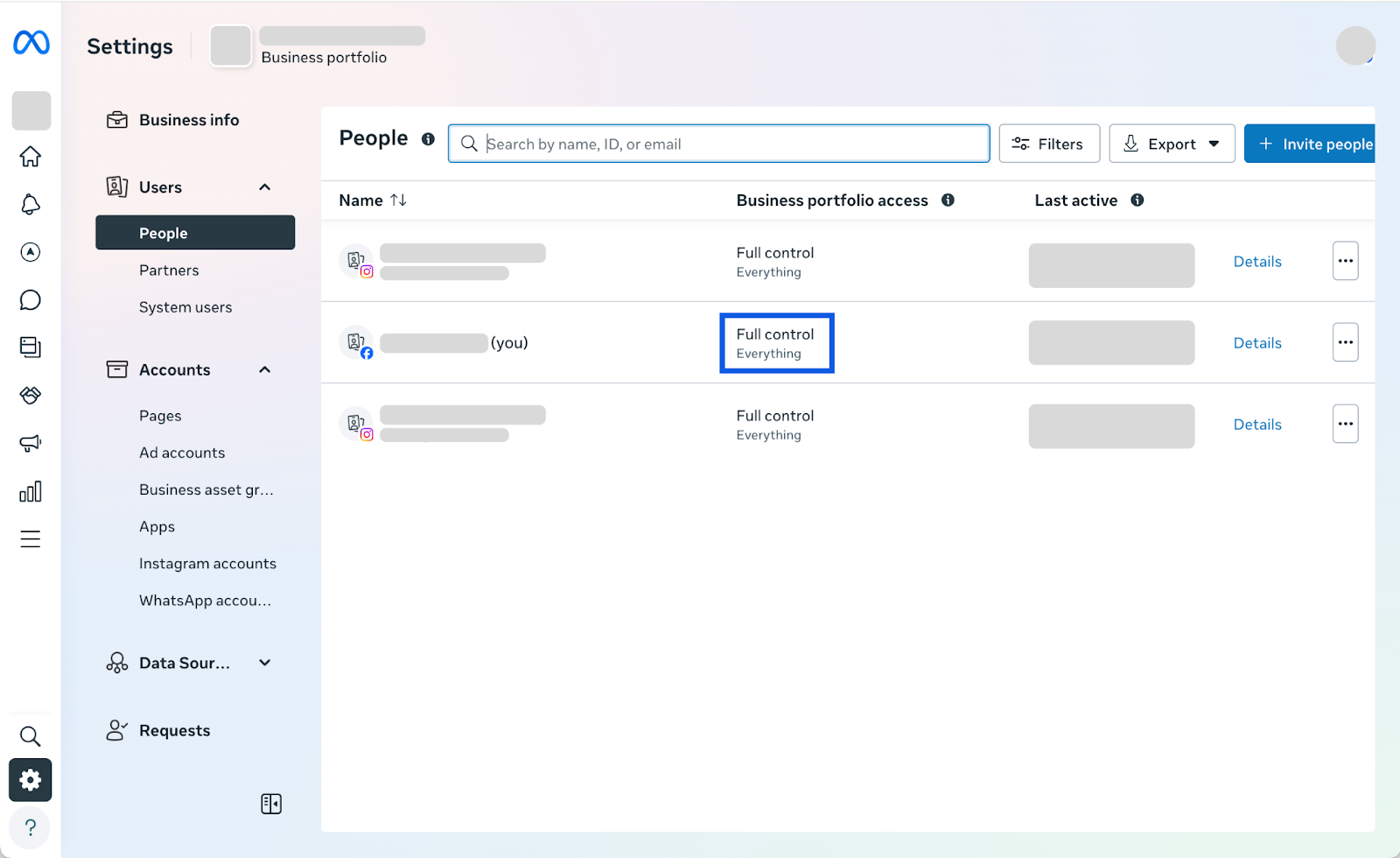
To provide partner access to Reelist, you will need to have Full control of your organization’s Meta Business account, Facebook page, and Instagram page.
To confirm:
- Visit https://business.facebook.com/settings/business_users/
- If you aren’t already, login with your credentials
- In the People list, in the row with your name the “Business portfolio access” it should display as “Full control” of “Everything” or “Facebook page, Instagram page”
If the access is not set to one of those displays, you will need to be given increased access by someone on your team who does, or ask another team member to support with the next step.
Step 2: Provide partner access to Reelist
Adding Reelist as a partner will enable you to provide access to your pages, and run ads that include their handles when posts are promoted.
To do this:
- Visit https://business.facebook.com/settings/partners
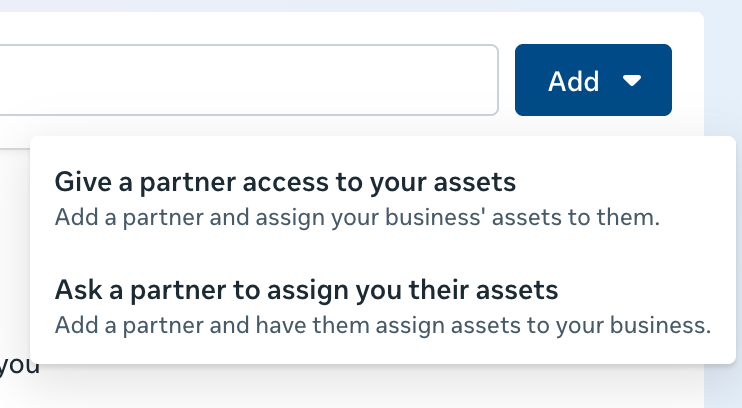
- Select “Add” then “Give a partner access to your assets
- Enter the Partner Business ID: 584469649530823
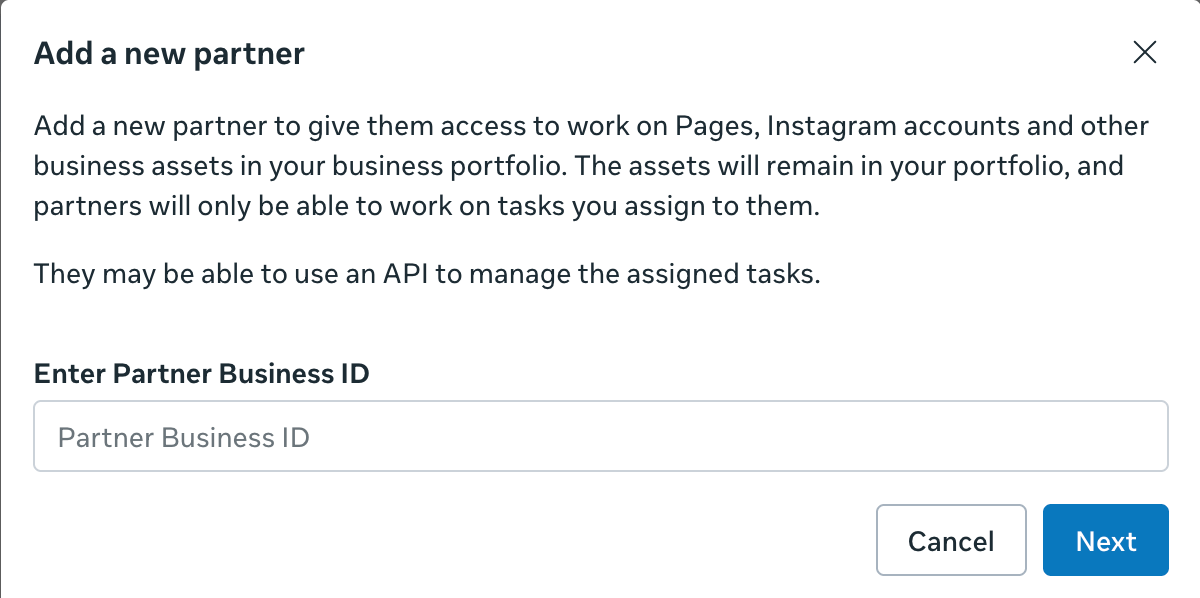
- Select “Next”
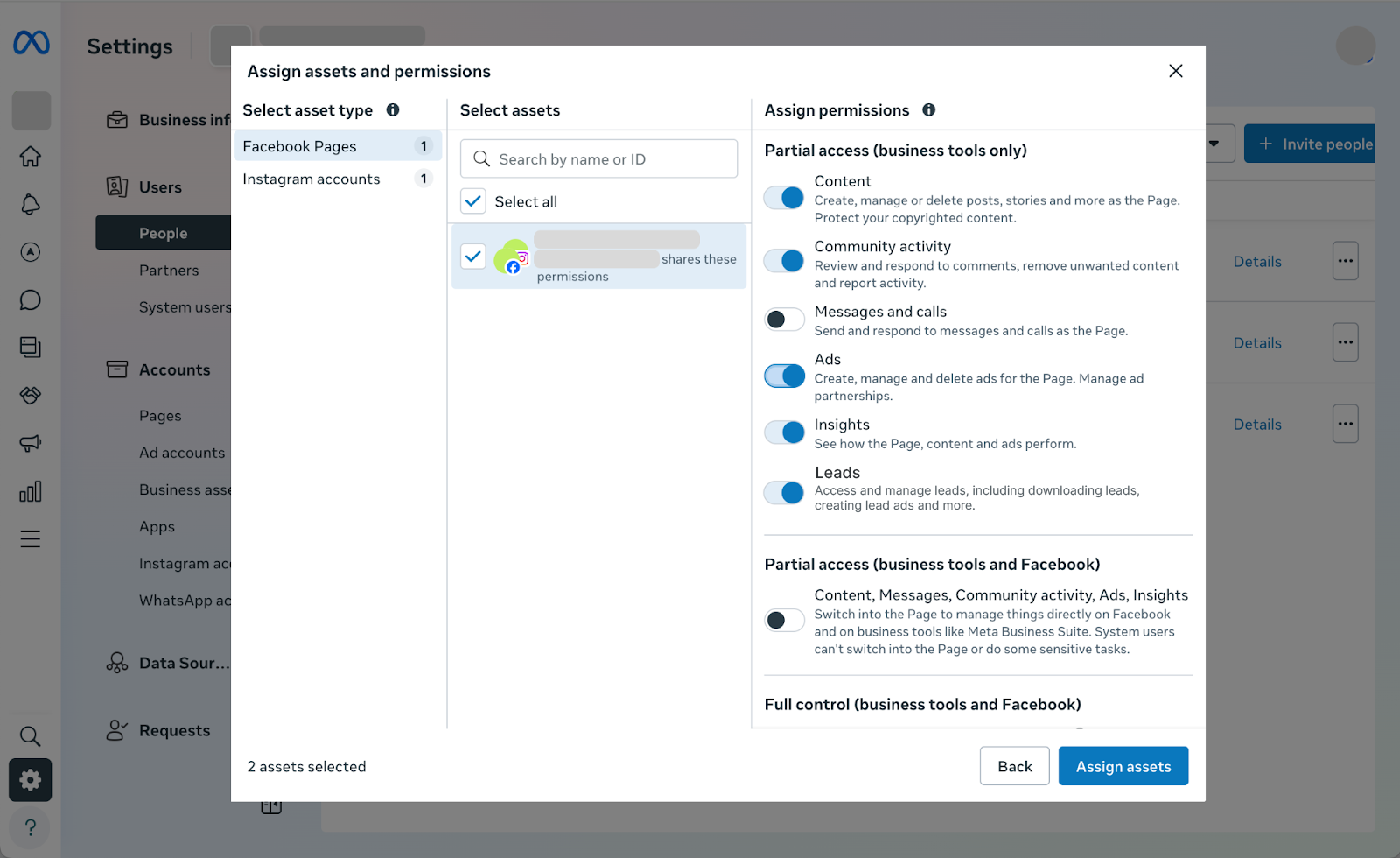
- In the popup left hand menu under “Asset type” select “Facebook pages”
- In the middle under “Select assets” check the box next to the page or pages you’d like display with your Reelist ad
- In the right hand menu, toggle on:
- Ads
- Content
- Insights
- Community activity
- Leads
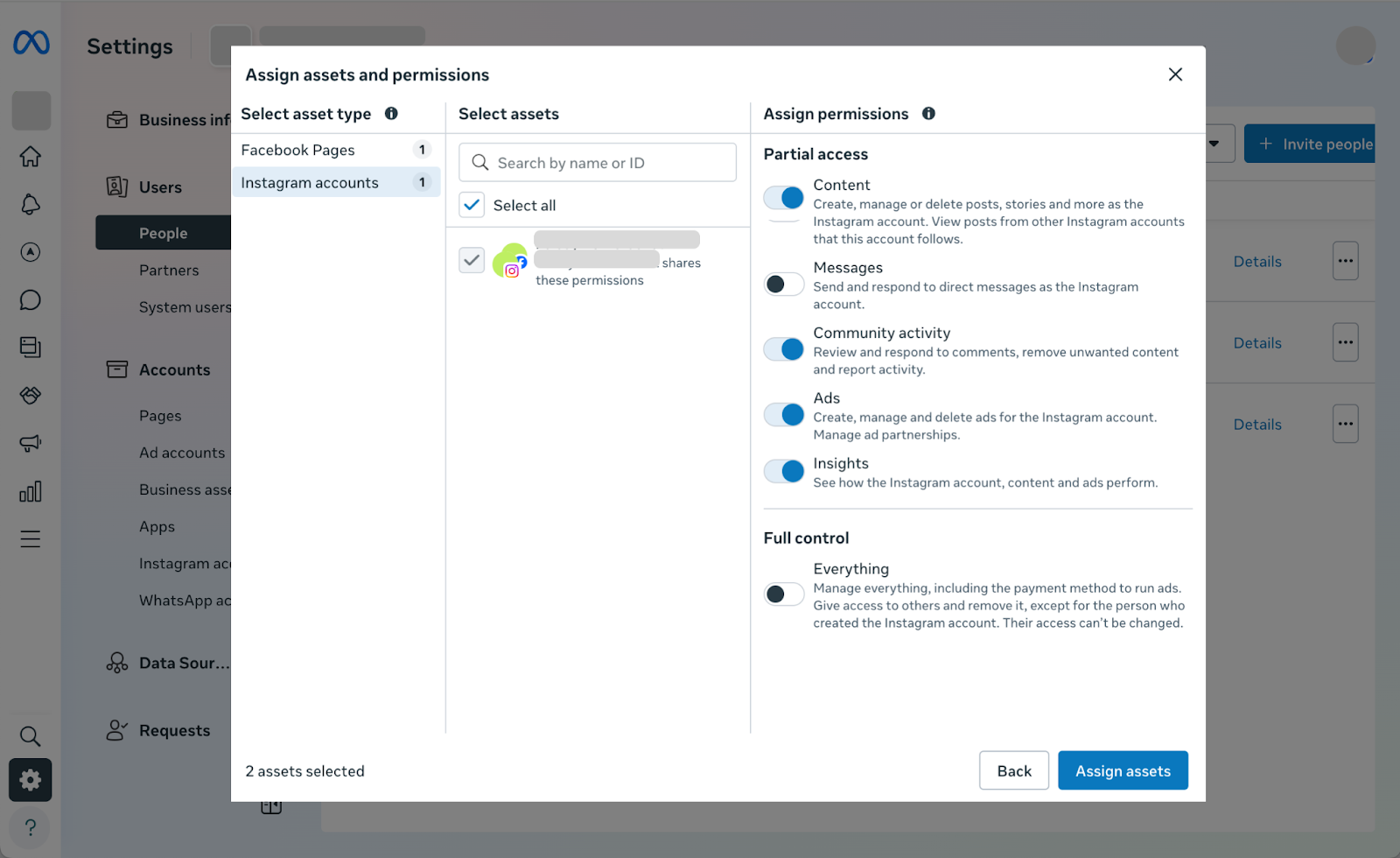
- In the left menu select “Instagram accounts”
- In the middle under “Select assets” check the box next to the Instagram page or pages you’d like display with your Reelist ad
- In the right hand menu, toggle on:
- Ads
- Content
- Insights
- Community activity
- Leads
- In the bottom right select “Assign assets”
Step 3: Confirm with your Reelist integration manager
To do this:
- Email support@reelist.com with subject line “Partner access”. In the email, inform the integration team that you’ve provided partner access
- Once confirmed, you will be notified, and will be ready to promote organic social posts in Reelist
Changes
Reelist reserves the right, in its sole discretion, to change the policies under which reelist.com or related services are offered, including but not limited to the Privacy Policy and Terms of Service. The most current version of these policies will supersede all previous versions. When required by law, Reelist will notify you about significant changes to these policies by sending a notice to the primary email address specified in your account, placing a prominent notice on our Site, and/or updating any information on this page.
Your continued use of the Site and/or Services available through this Site after such modifications will constitute your: (a) acknowledgment of the modified policies; and (b) agreement to abide and be bound by those policies. Reelist encourages you to periodically review these policies to stay informed of our updates.
.png)